

Type Foreign Language Characters
How to type Foreign language characters on your keyboard is one of the most common questions we get. Here is more information on the best way to type in foreign languages.
Option #1 - Change your windows language settings so you can type in many different foreign languages on your keyboard. This will give you accents punctuation and characters over the letters when you type. You can also purchase keyboard stickers that make it easier.
Option #2 - Use our free online virutal Keyboard
Great for quickly typing those Spanish accents.
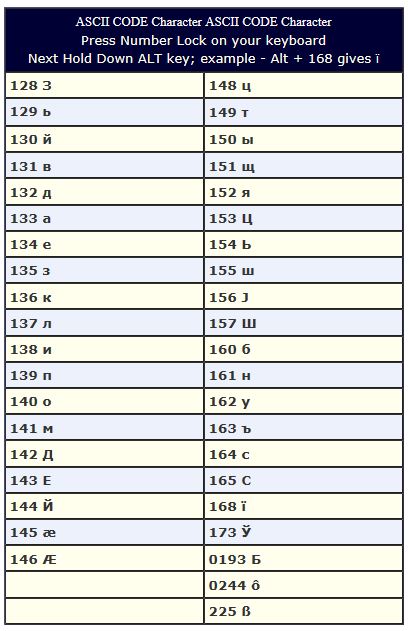
Option #3 - Type only a few characters using Ascii Code (See the chart below)
FOREIGN LANGUAGE ACCENTS, CHARACTERS and PUNCTUATION
Many times when working with foreign languages you will need to add an accent over the letter. This quick reference guide should help with European language characters.
To enter a Foreign Language character hold down the Alt key on your keyboard and type in the appropriate ASCII Code number.
Many symbols can also to be found in Symbol under Insert in the Microsoft Word drop-down menu.