



Typing Spanish Accents
 The Spanish language characters are very close to English but many of them have accents above the characters. When you start working with translation software you will need to type letters with the Spanish accents.
You have a couple of options, first you can easily change your keyboard settings in windows and then toggle between the Spanish and the English by hitting "Alt + shift". Second, if you only need a couple of Spanish characters, you can use your number pad to make ASCII characters. Choose the option below that works best for you.
Option 1: Type in only a few accents in Spanish Manually use your number pad to input ASCII character. For instructions go to our Foreign Language Characters section.
Option 2: In Windows configure your keyboard to use a different language or keyboard layout, use the appropriate method for your version of Windows.
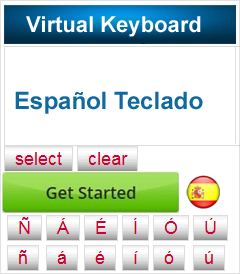 Option 3: Only Need to Type a few words?
Use our Free Spanish Keyboard
How to Set up your computer to type in Spanish (Or any other language)
Select your Computer's Operating System Below:
Microsoft Windows XP
1. Click Start menu, select Settings then Control Panel.
2. Click Regional Options and Languages icon.
3. Click on Languages tab.
4. In Text Services and Input Languages, Click Details, then under "Installed Services" click ADD.
5. Choose the Input language from the drop menu, then click OK ( For Spanish use "International Sort") Note: ** Additional files will be copied to your machine. You may need to provide the Windows XP CD or the network share name.
6. After reboot, support for new languages will become available.
7.You can Switch between the English and Spanish layouts with Alt + shift.
Microsoft Vista
You can type in multiple languages by changing the the input language. Input languages are included with Windows, but you need to add them to your list of languages before you can use them.
-
Open Regional and Language Options by clicking the Windows Start button , clicking Control Panel, clicking Clock, Language, and Region, and then clicking Regional and Language Options.
-
Click the Keyboards and Languages tab, and then click Change keyboards.
-
Under Installed services, click Add.
-
Double-click the language you want to add, double-click the text services you want to add, select the text services options you want to add, and then click OK.
Microsoft Windows 7
In Windows 7 the way you type in foreign languages has changed. Here is an easy to follow video from Microsoft that will help.
Video: http://windows.microsoft.com/en-us/windows7/Add-or-change-an-input-language
Spanish Translation Software
With our Spanish language translation software you can easily translate Spanish documents, email, chat, Excel spreadsheets, Powerpoint presentations and more! Our Spanish translation software will help you translate Spanish to English and translate English to Spanish.