

Typing Accents
The European language characters are very close to English but many of them have accents above the characters. When you start working with translation software you will need to type letters with the accents above them. You have a couple of options, first you can easily change your keyboard settings in windows and then toggle between for example, Spanish and the English by hitting "Alt + shift". Second, if you only need a couple of foreign language characters, you can use your number pad to make ASCII characters. Below are instructions on how to do this.
Quick Shortcut to Type Foreign Language Accents
Option 1: Type in only a few accents in Spanish Manually use your number pad to input ASCII character. For instructions go to our Foreign Language Characters section.
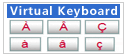 Option2: New! Our online Virtual Portuguese Keyboard makes it easy to type the accent marks over the letters. Type in English and then click on the proper Portuguese letter. Easily add words to your one custom dictionary with this new translation tool! Type Accents
Change your Keyboard to Type the Accents
Microsoft Windows XP
1. Click Start menu, select Settings then Control Panel.
2. Click Regional Options and Languages icon.
3. Click on Languages tab.
4. In Text Services and Input Languages, Click Details, then under "Installed Services" click ADD.
5. Choose the Input language from the drop menu, then click OK ( For Spanish use "International Sort") Note: ** Additional files will be copied to your machine. You may need to provide the Windows XP CD or the network share name.
6. After reboot, support for new languages will become available.
7.You can Switch between the English and Spanish layouts with Alt + shift.
Microsoft Windows 7
You will find the system to type in different languages has completely changed in Windows 7. Multiple languages are included with Windows but you will need to add the languages manually.
Microsoft has a great video that will show you how to add or change an input language:
Microsoft Video - Change Input Method
Don't forget we sell Keyboard Overlays, these are small clear labels that go on your keyboard that allow you to use your regular keyboard but you can see the foreign language characters on each key.
Microsoft Windows 8
You will find the system to type in different languages has changed slightly.
Click here for instructions: Windows 8 Typing Accents
Translation Software:
With our language translation software you can easily translate documents, email, chat, Excel spreadsheets, Powerpoint presentations and more! Our translation software will help you automatically convert languages.