
Speech to Text Translation with Systran and Speech Recognition
Did you know that you can speak into your computer's microphone, have your speech turned into text by your computer, and then have your computer translate that text from English to Spanish? Using speech recognition software, such as Dragon NaturallySpeaking, you can easily turn your words into text on your computer. Then, using another software application, such as Systran Language Translator, you can translate that same text into a large selection of other languages. Speech recognition and language translation software applications are even available today for PDAs and some mobile phones. Yes, the technology age is indeed upon us!
Many busy professionals use speech recognition software to save time and money. Professionals, such as physicians and attorneys, who must dictate complex notes, use Dragon NaturallySpeaking in order to get their notes into written form. This allows them to dictate their notes without having to take the time to sit and type them, or pay someone else to type them up for them from tapes.
Speech Recognition Software
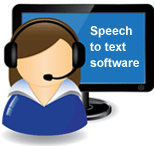 Speech recognition software can be up to three times faster than typing for the average professional, and up to 95% accurate after some proper training. Most speech recognition software is compatible with Microsoft Office, Corel Word Perfect, Lotus Notes, Microsoft Internet Explorer and just about any other Windows-based application in existence today.
One caveat to using speech recognition software followed by language translation software is that you must take care to speak clearly and use short, grammatically correct sentences and use proper punctuation. It is also important to avoid slang or idioms which the translation software will not correctly translate.
Once your speech has successfully been converted into text, then you need to carefully proof the document for correct grammar, spelling, and punctuation, prior to attempting software translation into another language. Even the best software translators will leave your document with some errors. This is due to the vast meanings of various words and phrases both in the English language as well as in other languages.
Translate The Text
 Using speech recognition software followed by language translation software, you can get a good working quality document. If you require a 100% accurate or publishable document, then you will need to follow up your software translation with a human translator who is bilingual in both languages. A human translator will be able to fix any nuances in the language, and ensure that your translated document is grammatically correct.
Both voice recognition and language translation software have come a long way from their simple beginnings. It is now possible to really achieve very good results with this combination of software. With the addition of a human translator you can have a 100% accurate document without ever having to type a single word.
Summary
Here are the steps:
 Take speech recognition software and set it up where it will dictate into MS Word. Pay close attention to your grammar, spelling and punctuation.
 Review your document to make sure there are no errors.
 Save your file
 Translate document with Systran Translation Software
Here are additional tips on getting higher accuracy with this process: Translation Tips
Related Speech / Translation Articles:
Learn more about translation software technology
See a list of translation software products.
Learn more about: Speech translator technology